Register for a SWEAR Portal account
Overview
This guide explains how to register for a SWEAR Portal account. After registration, you can sign in, download SWEAR software, and access implementation credentials.
%%{
  init: {
    'theme': 'base',
    'flowchart': {
      'useMaxWidth': false
    }
  }
}%%
graph LR
    A([SWEAR Support]) --> B[Send Customer Invitation Email]
    B --> C[Launch Registration from Email]
    C --> D[Register Your Account]
    D --> E[Login to SWEAR Portal]
    E --> F[Verify Account Details]
    F --> G([Complete])
click A "https://swear.com/contact/" "Contact SWEAR Support"
What you’ll accomplish
By the end of this guide, you will be able to:
- Download SWEAR software for installation
- Retrieve the credentials required to access the SWEAR system
Who this is for
- Audience: customer, customer-admin
1) Receive your portal invitation
SWEAR Support will initiate the registration by sending a portal registration invitation to the customer email address.
If you are a SWEAR customer and do not have a SWEAR Portal login, contact our support team: SWEAR Support.
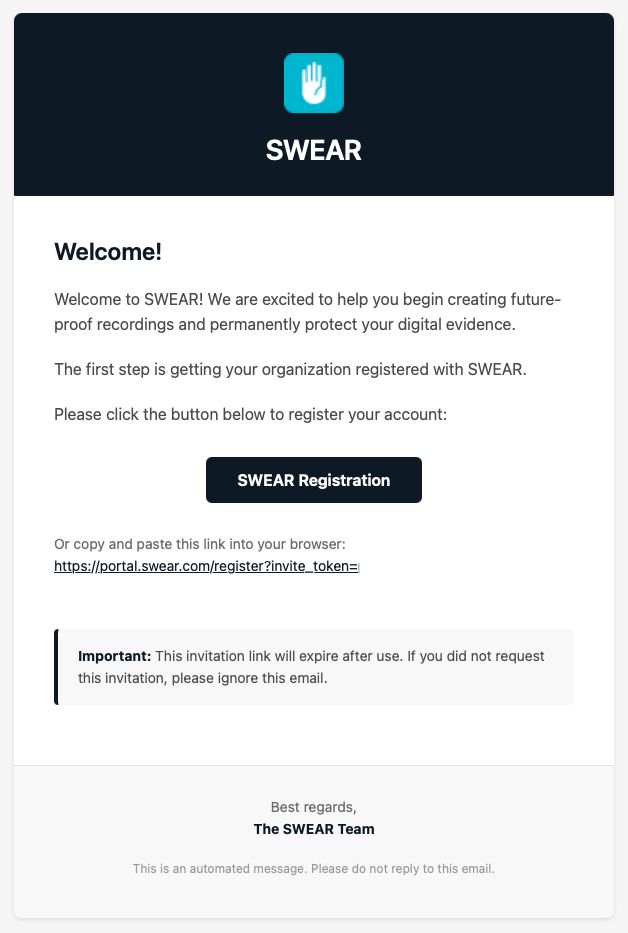
2) Open your SWEAR Client Portal invitation
Open the email from SWEAR with this subject line. If you do not see it, check your spam or junk folder.
Select SWEAR Registration in the email.
3) Register your account
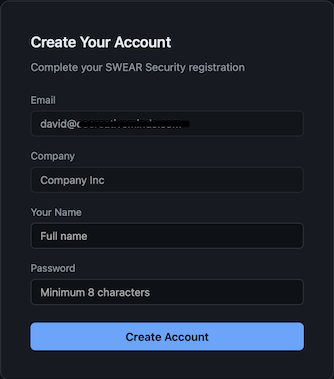
Enter your full name and a password. You will use this password with your email address to log in to the portal.
Select Create Account.
On Success
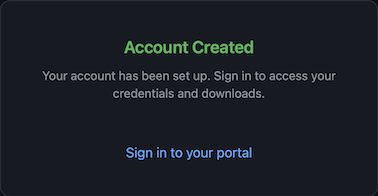
After you see Account Created, click Sign in to your portal.
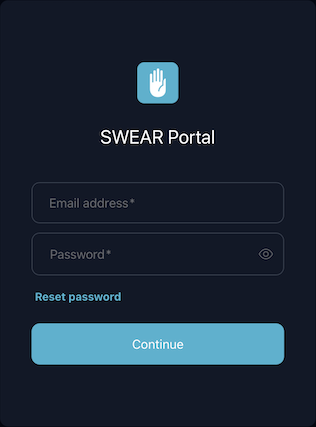
4) Log in to the SWEAR Portal
Use your email address and password to log in to the SWEAR Portal.
5) Verify profile information
Confirm that the information in the Profile Information tab is accurate. If the admin or billing information is missing or incorrect, enter the correct details.
If any other information on the page is incorrect, contact SWEAR Support.
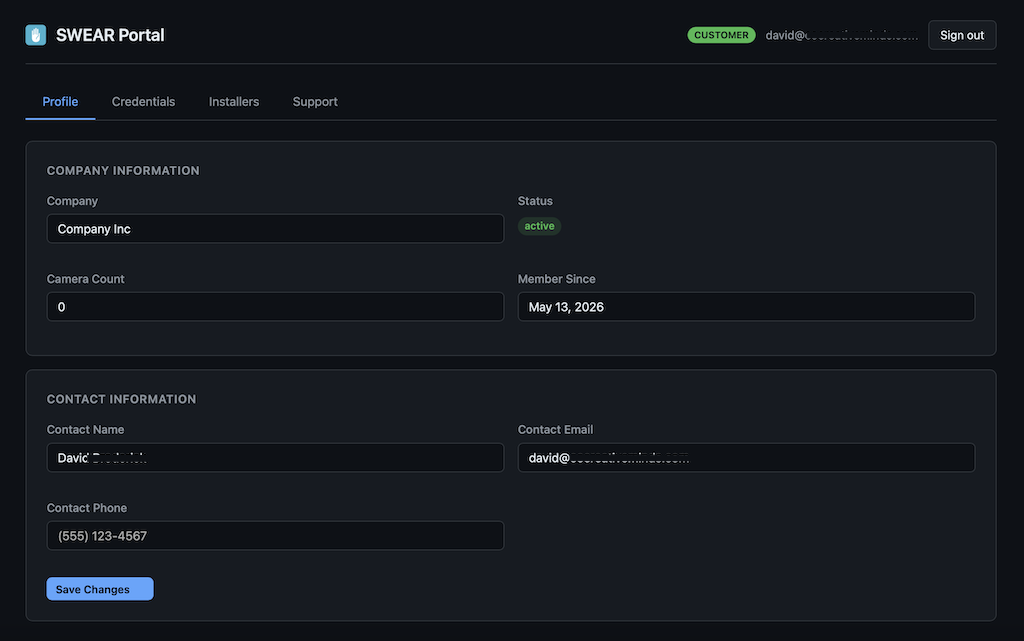
Expected result
You can log in to the SWEAR Portal and access your profile, SWEAR installers, and credentials for your implementation.
Next Step: SWEAR Installation for Milestone XProtect
TRIAL USERS: Update from trial to purchase
If you are transitioning from a SWEAR trial to a paid license, you only need to update your client credentials for SWEAR in the Milestone system.
To update your SWEAR credentials:
- Log in to your SWEAR Portal account you just created.
- Navigate to the Credentials tab in your portal account.
- Copy your new Client ID and Client Secret.
- In Milestone Management Client, under SWEAR -> API Settings replace the existing Client ID and Client Secret with the new credentials from your portal account.
- Restart SWEAR Certification Service in the Windows tray for the changes to take effect.
SWEAR will now operate under your paid license. No reinstallation is required.
If it didn’t work
If you cannot log in to the SWEAR Portal or experience issues with your new credentials, contact SWEAR Support.