SWEAR Certification Server Information Pane in Milestone XProtect
Purpose
This page explains the SWEAR Security Milestone XProtect Server Information Pane and what each field means. Use it when you need to configure SWEAR protection, confirm service health, and review hashing and upload behavior for protected cameras.
You can navigate to this pane in Milestone Management Client using the left-side navigation tree:
- Select SWEAR.
- Select Certification Servers.
Scope
- Includes: Certification Servers Overview, Configuration tab fields, Status tab fields, camera selection, and hash counters.
- Does not include: Installation steps, licensing workflows, or end-to-end video validation walkthroughs.
- Applies to: Milestone XProtect Management Client environments using the SWEAR Milestone plugin.
Quick definitions
| Term | Meaning |
|---|---|
| Certification Server | SWEAR server-side component responsible for protecting selected camera streams by generating and uploading hash records. |
| Configuration tab | Tab used to configure or re-configure SWEAR Certification Server settings and define which cameras are protected. |
| Status tab | Tab used to monitor service health, communication state, camera-level activity, and hash processing statistics. |
| Associated Recording Server | The configured Milestone recording server source used for camera discovery and SWEAR protection assignment. |
| Hash record | A generated digital fingerprint entry used to support blockchain-backed protection and later verification. |
How it works
Components
- Milestone Management Client: UI where administrators configure and monitor the SWEAR Certification Server.
- SWEAR Certification Servers: Top level UI Pane for SWEAR Information.
- Configuration tab: Defines service enablement, naming, recording-server association, and camera protection selection.
- Status tab: Shows server health and per-camera processing information, including hash statistics.
- SWEAR API connection: Upload path used to preserve hash records for protection.
Data flow
- Administrator configures the SWEAR Certification Server in the Configuration tab.
- Selected cameras are mapped from the Associated Recording Server.
- SWEAR receives camera frames and generates hash records.
- Hash records are queued and uploaded through the SWEAR API.
- Status tab surfaces current service state, camera activity, and hash counters.
States / lifecycle
- Configured: Server settings and camera selections are defined.
- Saved and active: Settings become active only after Save is applied.
- Processing: Selected camera streams are being protected by SWEAR.
- Monitored: Status tab reports communication health and hash-processing behavior.
Permissions / roles
- Camera availability in Configuration tab is permission-aware.
- Cameras shown as Available are both:
- Connected to the configured Associated Recording Server.
- Allowed for access by the currently logged-in user or role.
Key behaviors and rules
- The Configuration tab is the official source of which cameras are under SWEAR protection for that Certification Server.
- Changes in Configuration tab do not apply until saved.
- Changing Associated Recording Server can change camera availability and can cause previously selected cameras to no longer be protectable by SWEAR.
- Certification Server name is a label only and can be changed without impacting SWEAR service operation.
- Enabling or disabling the service directly controls whether SWEAR Certification is active in Milestone. This does not stop the certification service running in the Windows system tray.
Configuration and defaults
| Setting | Default | Notes |
|---|---|---|
| Enabled | Environment-specific | Turns SWEAR Certification Service on or off within Milestone. |
| Certification Server name | Environment-specific | Friendly label only; changing this label does not change service behavior. |
| Associated Recording Server | Environment-specific | Determines source server for camera list and protection targeting. |
| Process All Cameras | Off unless selected | When enabled, SWEAR protects all eligible cameras from the Associated Recording Server. |
| Camera Selection (Available -> Selected) | Manual selection | Cameras are moved between columns using Add and Remove controls. |
Limits and constraints
- Rate limits: Not documented in this reference.
- Size limits: Not documented in this reference.
- Timeouts/TTLs: Not documented in this reference.
- Compatibility: Camera codec support in Status view currently indicates H.264 and H.265 as supported codecs.
Certification Server Information
Summary
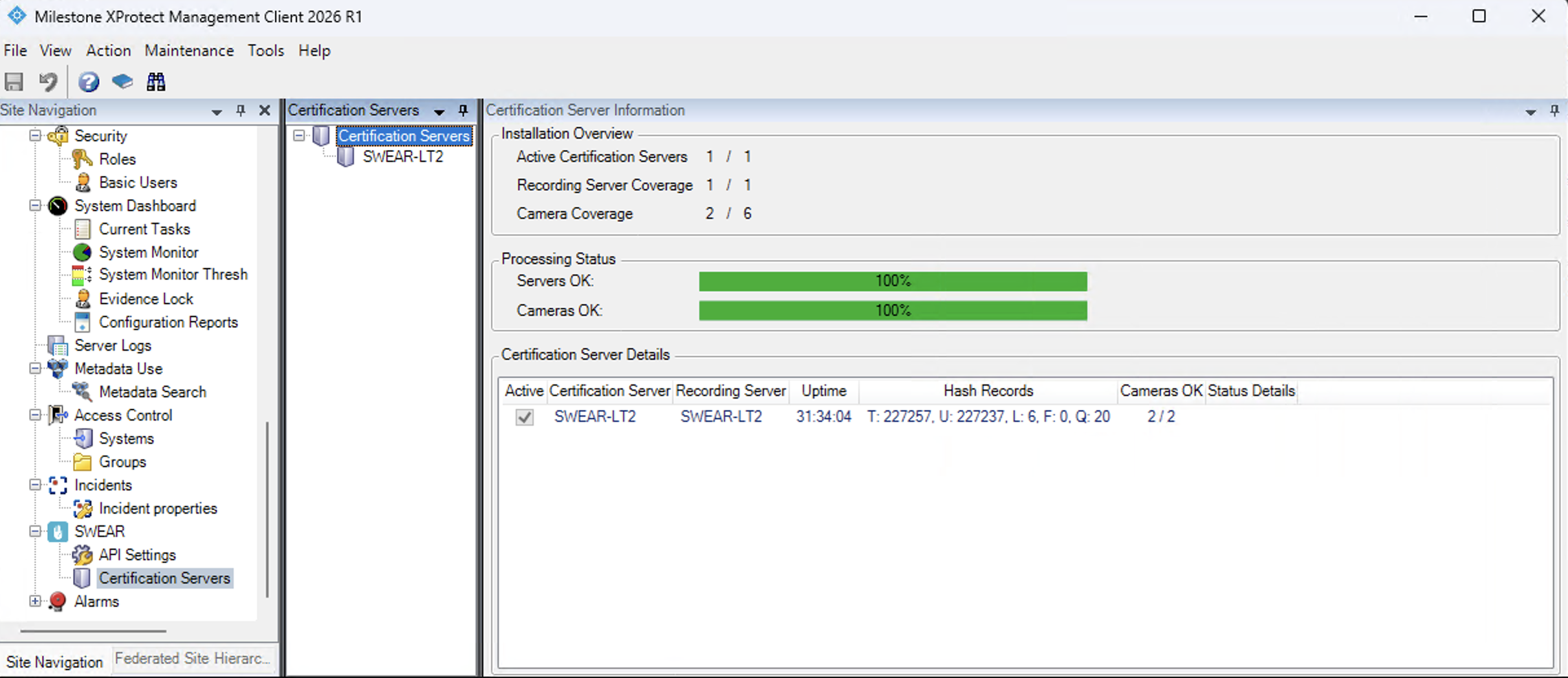
This pane shows the top level overview, status and details of all certification servers and camera coverage.
Fields
- Installation Overview: This section is a rollup of all servers and camera coverage
- Active Certification Servers: Number of active certification servers out of the total configured in this Milestone Management Client.
- Recording Server Coverage: Number of Recording Servers covered out of the total available in this Milestone Management Client.
- Camera Coverage: Number of cameras protected by SWEAR out of total number of available cameras configured for Recording Servers.
- Processing Status: Visual indicators of Server and Camera Processing status
- Servers OK: Percentage of servers in OK status out of total certification servers configured.
- Cameras OK: Percentage of cameras in OK status out of total cameras configured for protection.
- Certification Server Details: Summary status of all Certification Servers.
- Active: Is Certification Server active.
- Certification Server: Certification Server name.
- Recording Server: Recording Server name configured to this Certification Server.
- Uptime: Total runtime of this Certification Server.
- Hash Records: Hash stats for this server. See Hash record details.
- Cameras OK: Number of cameras in OK status out of total cameras configured for protection on this server.
- Status Details: Additional details for service status.
Screenshot
Configuration tab details
Summary
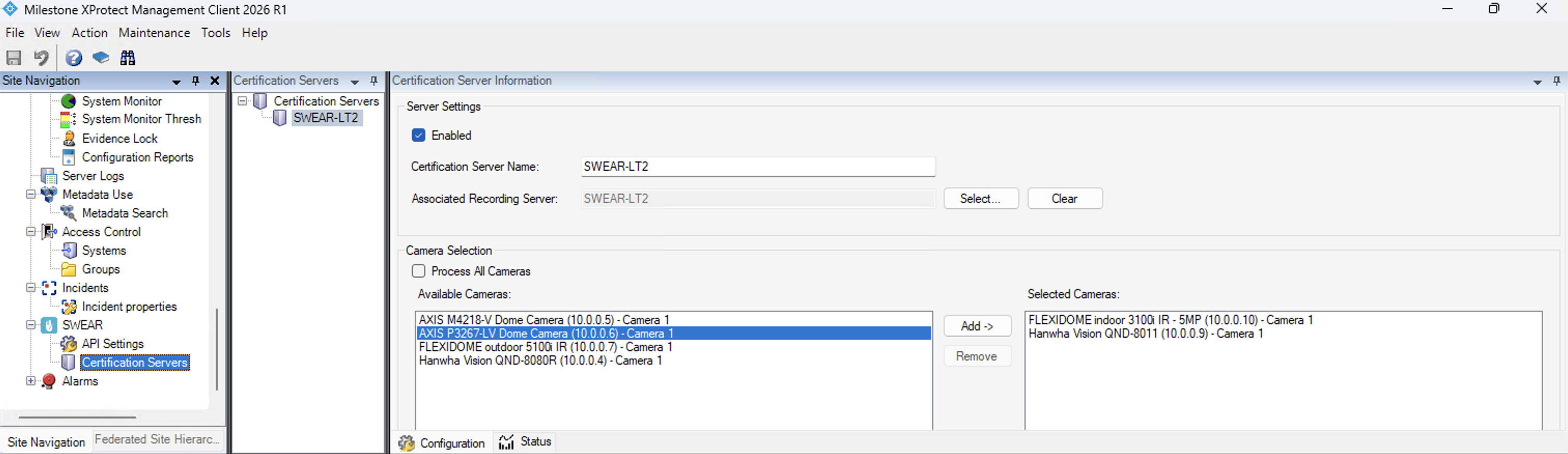
This tab is used to configure or re-configure the SWEAR Certification Server. It is also the official list of cameras protected by SWEAR for this server.
Fields and controls
- Enabled: Turns SWEAR Certification Service on or off within Milestone.
- Certification Server name: Label for this SWEAR configuration; changing it does not impact service behavior.
- Associated Recording Server (name): Recording server SWEAR uses to select and protect cameras.
- Camera Selection:
- Available Cameras (left): Cameras connected to the Associated Recording Server and visible to current user/role permissions.
- Selected Cameras (right): Cameras currently chosen for SWEAR protection.
- Add / Remove buttons: Move cameras between Available and Selected lists.
- Process All Cameras checkbox: Select all eligible cameras without individual selection.
- Save requirement: Any configuration changes must be saved to become active.
Screenshot
Status tab details
Summary
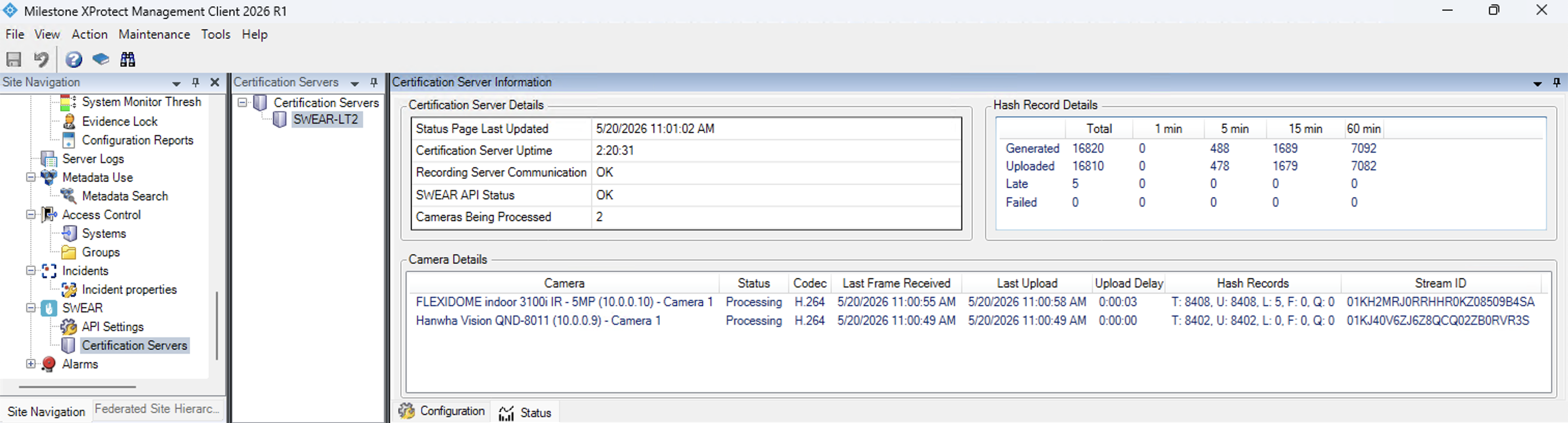
This tab is used to view Certification Server health, cameras being protected, and whether each camera is actively being processed by SWEAR. It includes camera-level hash details and rollup hash tables.
Certification Server Details
- Status Page Last Updated: Date/time when status values were last refreshed.
- Certification Server Uptime: Total runtime of the SWEAR Certification Server service.
- Recording Server Communication: Communication status between configured recording server and SWEAR service.
- SWEAR API Status: State of SWEAR API connectivity used for hash upload and protection.
- Cameras Being Processed: Count of cameras currently selected for SWEAR protection from the configured recording server.
Camera Details
- Camera: Camera name as defined on the configured recording server.
- Status: Current SWEAR protection/processing status for that camera (Processing, AuthError, Unreachable, ServerError)
- Codec: Camera stream codec (SWEAR currently supports H.264 and H.265).
- Last Frame Received: Date/time of most recent frame received from that camera.
- Last Upload: Date/time of latest hash upload for that camera.
- Upload Delay: Calculated delay between Last Frame Received and Last Upload.
- Hash Records:
- T: Total hash records generated
- U: Total hash records uploaded
- L: Total hash records experiencing a late upload
- F: Total hash records failed to upload
- Q: Total hash records waiting in the server's in-memory queue to be uploaded
- StreamID: Unique camera identifier.
Hash Record Details (rollup timeframe view)
- Generated: Number of hash records generated in the selected timeframe.
- Uploaded: Number of hash records uploaded in the selected timeframe.
- Late: Number of hash records with late upload in the selected timeframe.
- Failed: Number of hash records that failed upload in the selected timeframe.
Screenshot
Examples
Example interpretation: healthy operation
- Status Page Last Updated is recent.
- Recording Server Communication is healthy.
- SWEAR API Status is connected.
- Camera rows show recent Last Frame Received and Last Upload values.
- Hash records show increasing Generated and Uploaded values over time.
Example interpretation: upload pressure
- Upload Delay increases.
- Queue (Q) grows over time.
- Late (L) and possibly Failed (F) counts increase.
Common questions
Q: What should I do if I see Failed uploads?
A: Failed uploads will not be retried and cannot be validated. Take these steps immediately:
- Check the Status Details column on the same row which indicates the root cause. The F counter is just the symptom.
- From the certification server host, confirm network reachability to the SWEAR API endpoint (default https://prod.api.swear.com/security) and to auth.swear.com.
- In Tools > Options > SWEAR, verify the API URL, OAuth domain, client ID, and client secret are correct.
- If 1–3 are healthy, restart the SWEAR certification server service to clear any stuck state.
- If F (failures) continues to climb after a clean restart with no status details errors, contact support@swear.com with the certification server name, plugin version, and recent log entries.
Q: Do I need to be concerned if L (late uploads) has a non-zero value?
A: No action is required. Late uploads are still successful uploads and validation of that footage will work normally. A non-zero L value typically reflects network slowness, backend latency, or a queue catching up after a backlog.
Q: What if L (late uploads) value is consistently and growing alongside Q (queue)?
A: This is an indication the server is falling behind in real time; check the certification server's network path to SWEAR API for connectivity and/or congestion.
Q: Where do I confirm which cameras are officially under SWEAR protection?
A: In the Configuration tab, the Selected Cameras list is the official protected-camera set for that Certification Server.
Q: If I change the Certification Server name, do I impact protection behavior?
A: No. The Certification Server name is a label and can be changed without affecting service operation.
Q: What is this pane most useful for operationally?
A: It is commonly used to confirm recording-server communication, Certification Server uptime, SWEAR API status, and generated/uploaded hash behavior for protected cameras.