Skip to content
SWEAR Logo - Digital Video Authenticity
  • Solutions
    • SWEAR Security
    • SWEAR Mobile
  • Technology
  • About
    • Licensing
    • Blog
    • Press
  • Resources
    • Support
  • Solutions
    • SWEAR Security
    • SWEAR Mobile
  • Technology
  • About
    • Licensing
    • Blog
    • Press
  • Resources
    • Support
Request a Demo

XProtect Installation Guide

1
  • Step by Step Installation Guide

Prerequisites & Requirements

2
  • System Requirements for Server Certification System
  • System Requirements for Client Validation System

System Overview & Architecture

1
  • System Architecture
View Categories
  • Documentation
  • Step by Step Installation Guide

Step by Step Installation Guide

Dania Prouty
Updated on November 8, 2025

2 min read

Step 1 – Receiving SWEAR Installation Software #

The SWEAR team will send you an email with the following items:

  • SWEAR XProtect Server Installation Software
  • SWEAR XProtect Client Installation Software
  • SWEAR Account Login Credentials
  • SWEAR API Credentials

#


Step 2 – Create User in XProtect for SWEAR Service #

The SWEAR Authenticity Engine requires a Basic User account created in your Milestone XProtect environment.

If you need instructions, please consult your Milestone documentation HERE


Step 3 – Install the SWEAR XProtect Server Software #

From your Milestone server(s), perform the following tasks:

  • Download SWEAR Installation Software provided from SWEAR
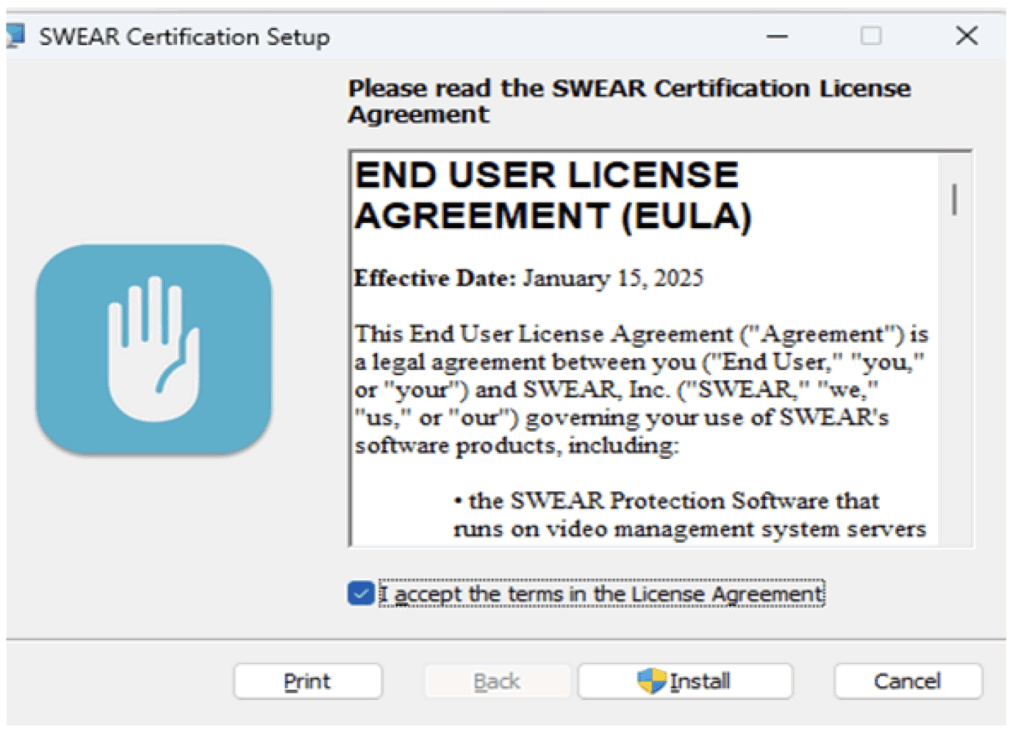
  • Run the installer software file (“SWEARCertificationInstaller.msi”)
  • Read and accept the EULA
  • Click Install


#

Step 4 – Configure SWEAR XProtect Server Software #

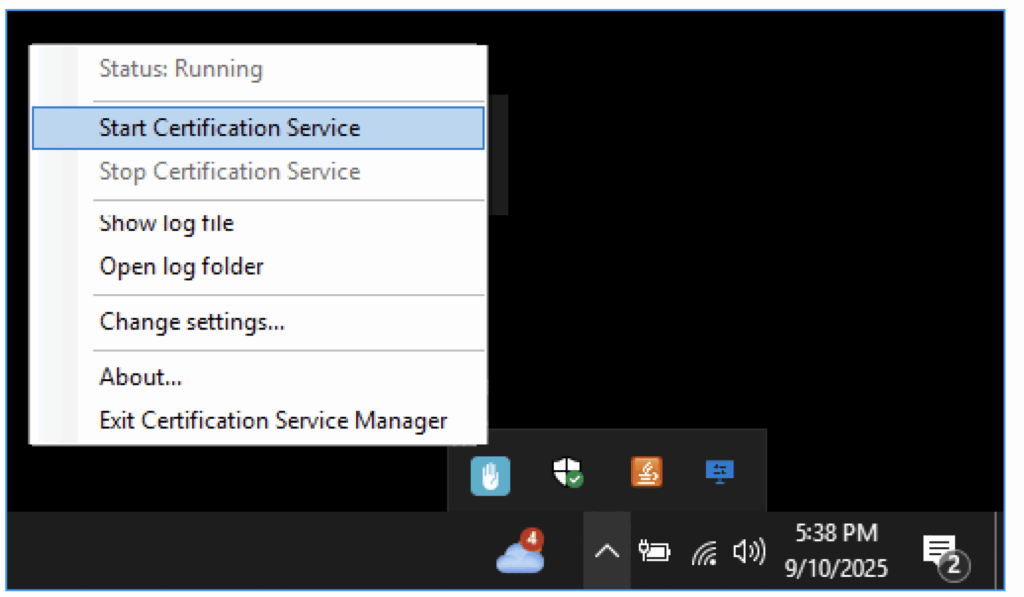
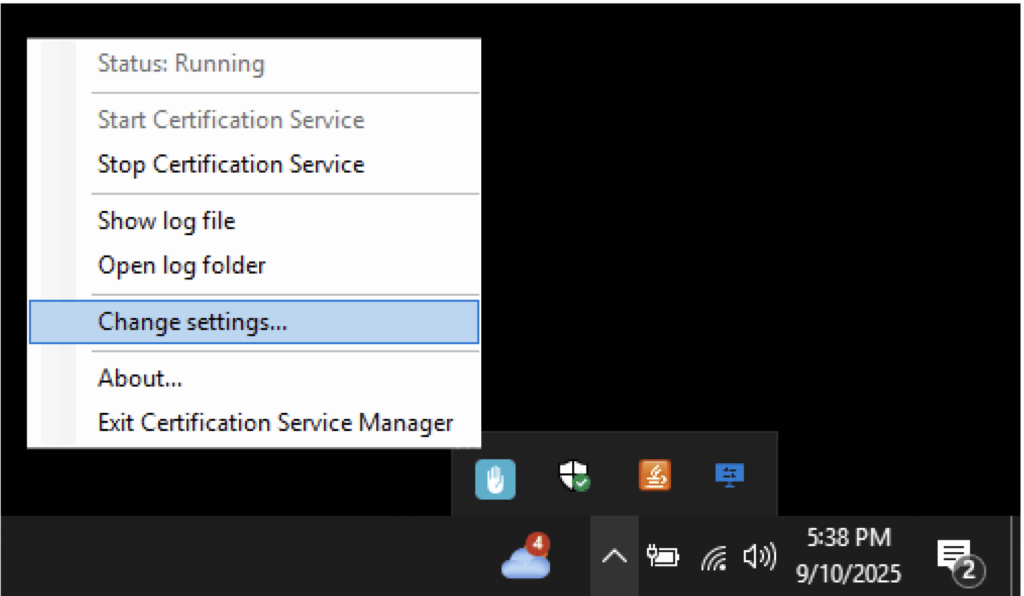
  • In the bottom right corner of your server screen (in the Service Tray), right-click the SWEAR icon and select “Change settings…”


  • Select “Basic Credentials” and enter the credentials for the XProtect Basic User that were created in “Step 2” and click “OK”
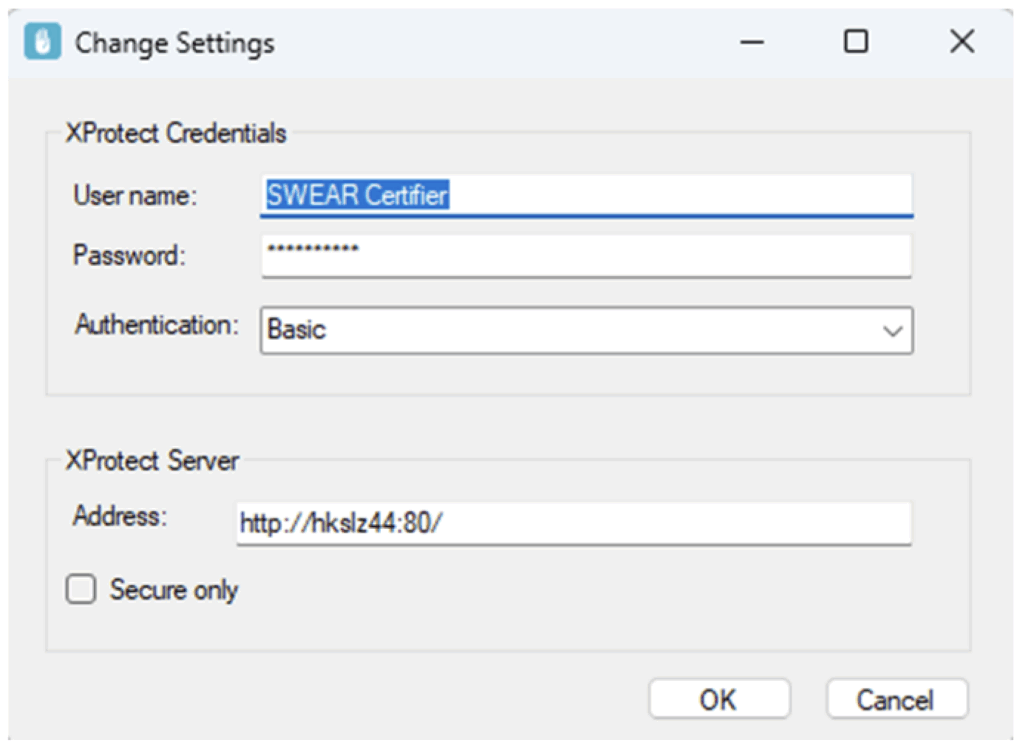
 

instaling


  • You’ll be prompted to “Restart the service for changed to take effect.” Select “Stop Certification Service”
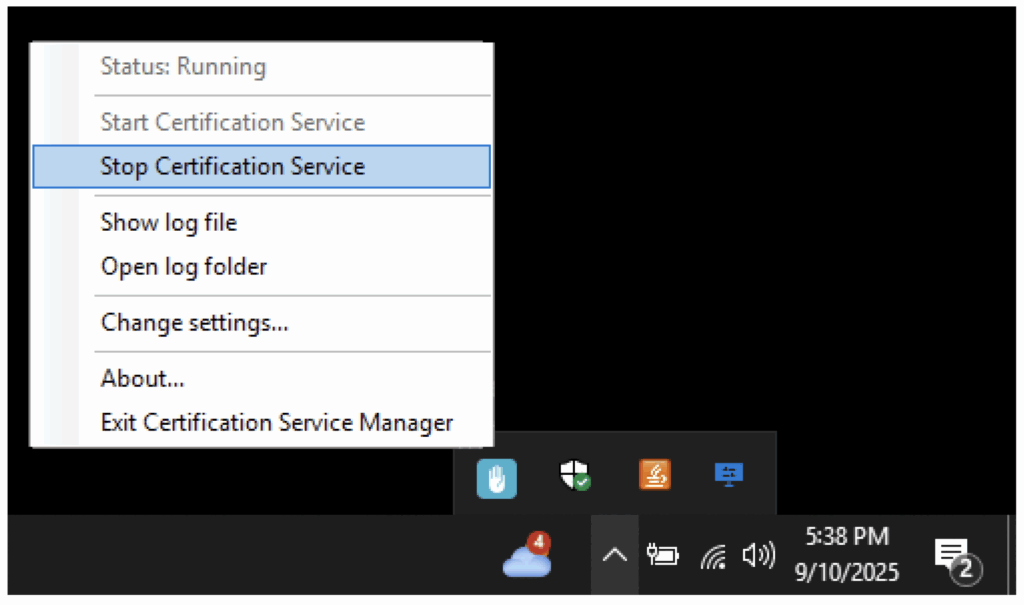
 

You’ll be prompted to “Restart the service for changed to take effect.” Select “Stop Certification Service”


  • Select “Start Certificate Service”


Select “Start Certificate Service”

  • Your server installation and configuration is complete.


Step 5 – Installing the SWEAR XProtect Client Software #

From your Windows client, perform the following tasks:

  • Download SWEAR Installation Software provided from SWEAR
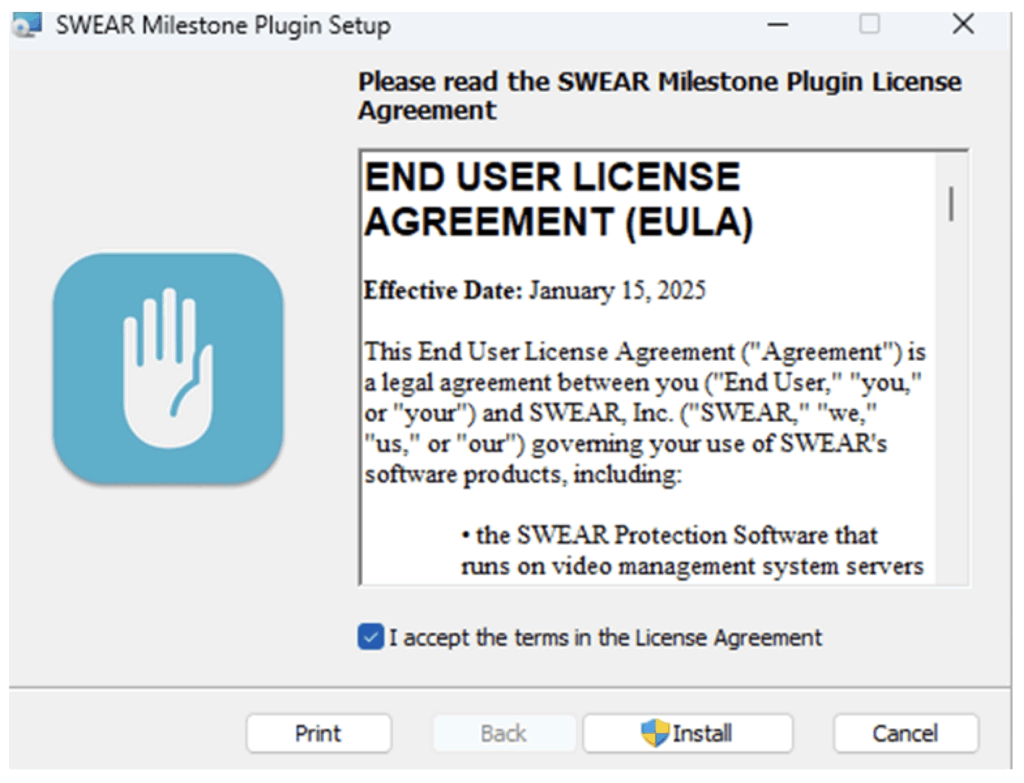
  • Run the installer software file (“SWEARPluginInstaller.msi”)
  • Read and accept the EULA
  • Click Install

Steps


After installation is complete, please restart your XProtect client

#

Step 6 – Configure XProtect Management Client #

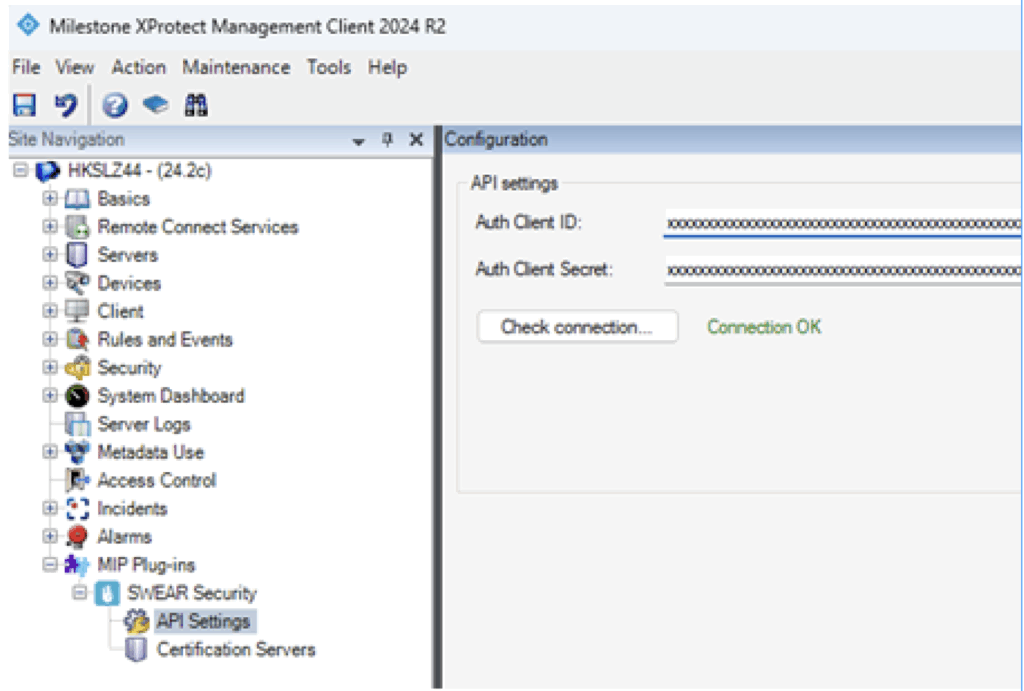
  • In Site Navigation go to MIP Plugins → SWEAR Security →Settings
 

Steps


  • Populate Auth Client ID and Auth Client Secret fields with the keys provided to you by SWEAR
  • Click the Check connection button to verify API connection

#

Step 7 – Select Cameras to Protect #

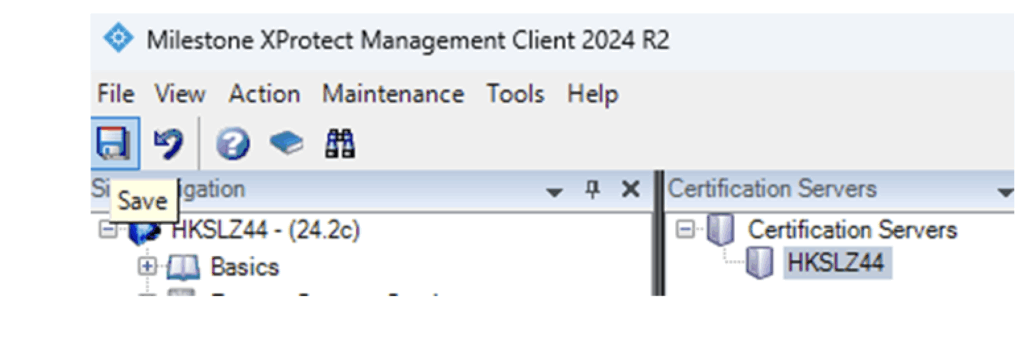
  • Open MIP Plugins → SWEAR Security →Certificate Servers
  • Select the cameras you want to begin protecting and click “Add”
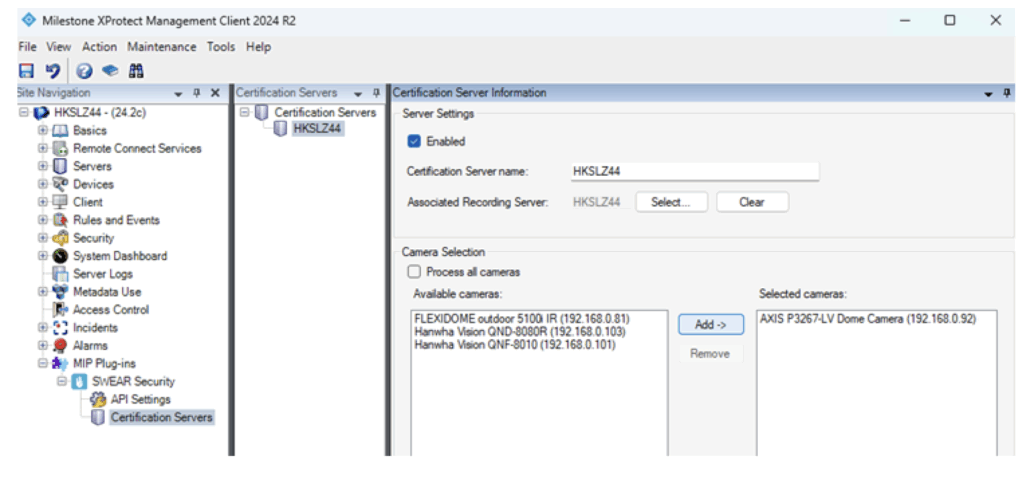


  • Click the SAVE button


save button


#

Step 8 – Verify SWEAR is Running #

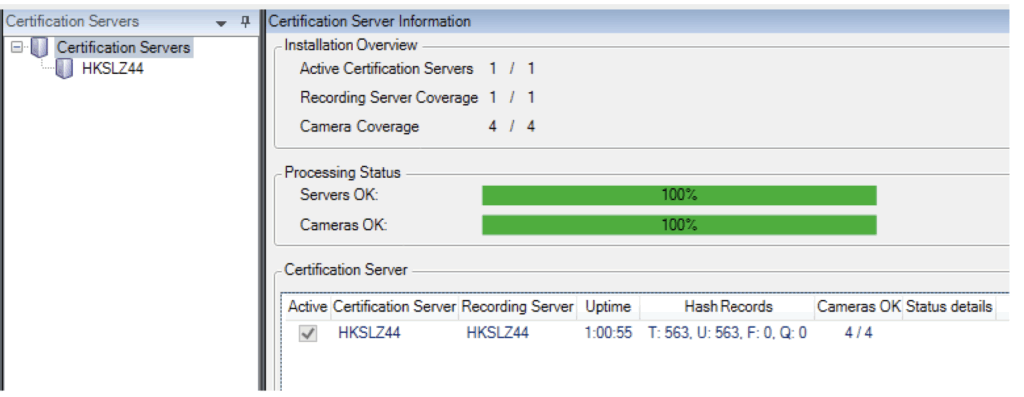
There are three methods to verify the SWEAR system is running properly:

  • Check the XProtect Management System

Step by Step Installation GuideStep by Step Installation Guide
Table of Contents
  • Step 1 - Receiving SWEAR Installation Software
  • Step 2 - Create User in XProtect for SWEAR Service
  • Step 3 - Install the SWEAR XProtect Server Software
  • Step 4 - Configure SWEAR XProtect Server Software
  • Step 5 - Installing the SWEAR XProtect Client Software
  • Step 6 - Configure XProtect Management Client
  • Step 7 - Select Cameras to Protect
  • Step 8 - Verify SWEAR is Running

Share This Article :

  • Facebook
  • X
  • LinkedIn
  • Pinterest

Was it helpful ?

  • Happy
  • Normal
  • Sad
SWEAR Logo - Digital Video Authenticity
  • Solutions
    • SWEAR SECURITY
    • Mobile App
  • Technology
    • FAQs
  • About
    • Press
    • Blog
    • Licensing
  • Resources
  • Support
  • Solutions
    • SWEAR SECURITY
    • Mobile App
  • Technology
    • FAQs
  • About
    • Press
    • Blog
    • Licensing
  • Resources
  • Support
  • Solutions
    • SWEAR SECURITY
    • Mobile App
  • Technology
    • FAQs
  • About
    • Press
    • Blog
    • Licensing
  • Resources
  • Support
  • Solutions
    • SWEAR SECURITY
    • Mobile App
  • Technology
    • FAQs
  • About
    • Press
    • Blog
    • Licensing
  • Resources
  • Support
Contact Us
Apple App Store download button with the Apple logo and text “Download on the App Store.”

© 2025 SWEAR, Inc. All rights reserved. Privacy Policy | Terms of Service | Community Guidelines